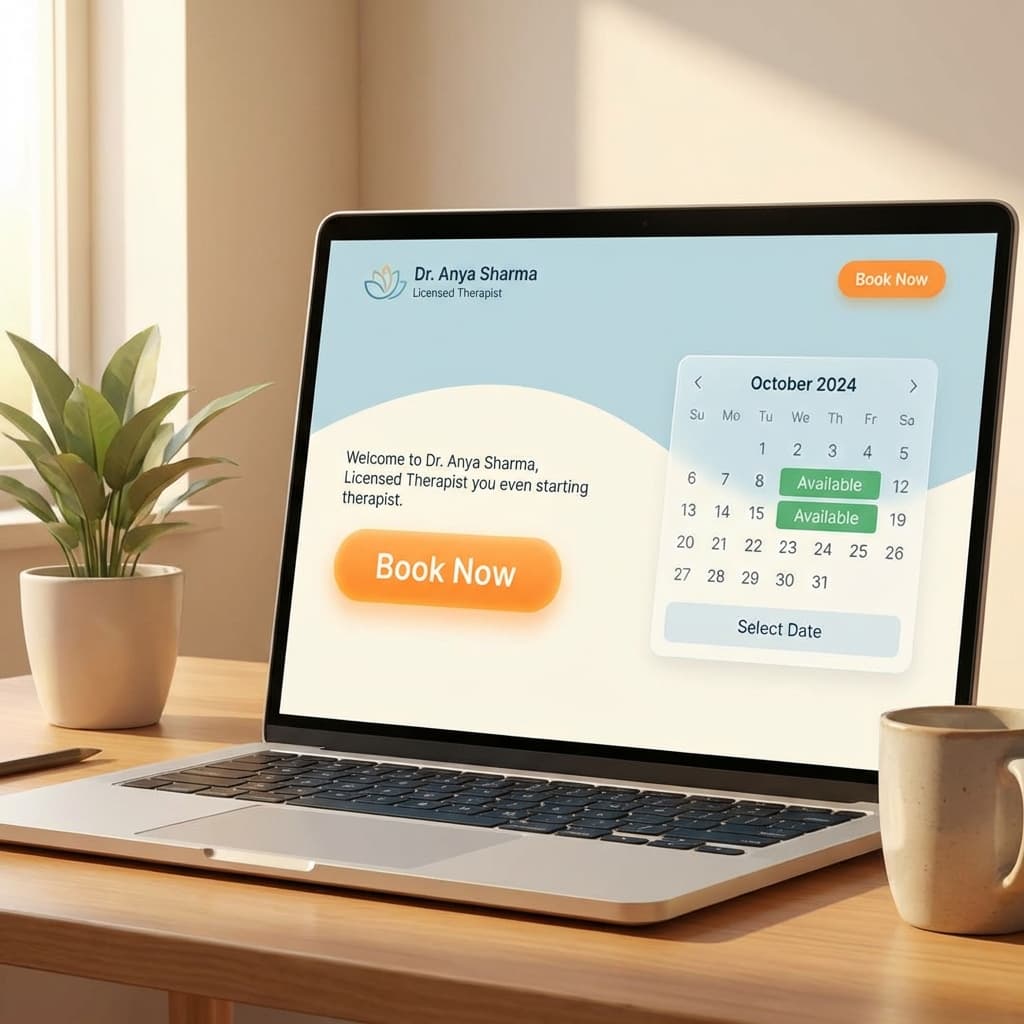
How to Add Online Booking to Your Therapist Website
TL;DR
- Conversion: Online booking increases inquiries by ~38%.
- Methods: "Button to Link" (Simple) vs. "Embedded Widget" (Seamless).
- Platforms: Works on WordPress, Squarespace, Wix, Webflow.
- Tip: Place the widget on your "Contact" page and "Services" page.
Your website is where potential clients decide whether to work with you. And every click, every email, every phone call they need to make to book... is a chance for them to give up and leave.
Adding online booking to your website removes that friction. This guide shows you how—whether you're on WordPress, Squarespace, Wix, or something else entirely.
Why Online Booking Matters for Therapists
Let's start with the data:
According to a 2023 Psychology Today survey, therapists who offer online booking receive 38% more inquiries than those who require phone or email contact.
Why? Because:
- Clients can book at 11 PM when they finally have a moment
- No phone anxiety (real thing, especially for therapy seekers)
- Immediate confirmation feels reassuring
- Fewer steps = higher conversion
For many potential clients, calling a therapist is intimidating. Booking online is much less so.
The Two Main Approaches
Option 1: Link to Booking Page
Add a "Book Now" button that opens your scheduling page in a new tab.
Pros: Simplest setup, works everywhere Cons: Takes visitors away from your site
Option 2: Embed a Widget
Embed the booking interface directly on your website.
Pros: Seamless experience, visitors stay on your site Cons: Slightly more technical, may require premium website plans
Most scheduling tools support both. We'll cover embedding, since it provides the better experience.
Step-by-Step: WordPress
WordPress is the most common platform for therapist websites. Here's how to add booking:
Using a Plugin (Easiest)
Many scheduling tools have WordPress plugins:
- Go to Plugins > Add New
- Search for your scheduling tool name
- Install and activate
- Configure with your account credentials
- Add the booking widget via shortcode or Gutenberg block
Example with OnlyCaly:
[onlycaly-booking specialist="your-slug"]
Using Embed Code
If no plugin exists:
- Get the embed code from your scheduling tool (usually an iframe)
- In WordPress, add a Custom HTML block
- Paste the embed code
- Preview and adjust sizing if needed
Typical embed code:
<iframe
  src="https://onlycaly.com/book/your-name"
  width="100%"
  height="600"
  frameborder="0"
></iframe>
Where to Place It
- Dedicated booking page: Create a page called "Book Now" or "Schedule"
- Homepage: Above the fold or after your introduction
- Services pages: After each service description
- Contact page: As the primary action
Step-by-Step: Squarespace
Squarespace makes embedding straightforward:
- Edit your page
- Add a Code Block (or Embed Block)
- Paste your scheduling tool's embed code
- Adjust the height to fit your content
- Save and preview
Pro tip: Squarespace sometimes restricts JavaScript in embeds depending on your plan. If the embed doesn't work, try using a simple iframe instead.
Squarespace Scheduling (Built-in)
Squarespace has native scheduling features, but they're limited for therapists:
- No HIPAA considerations
- Basic intake options
- Limited payment customization
For therapy practices, a dedicated scheduling tool usually works better.
Step-by-Step: Wix
Wix offers several embed options:
Using HTML iframe
- Go to your site editor
- Click Add (+) > Embed > HTML iframe
- Enter your booking page URL
- Resize and position the element
- Preview across devices
Using Wix App Market
Some scheduling tools have Wix apps:
- Go to App Market
- Search for your scheduling tool
- Install and configure
Step-by-Step: Other Platforms
Webflow
Use an Embed element and paste your iframe code.
Weebly
Add an Embed Code element in the editor.
Custom HTML Site
Add the iframe directly in your HTML where you want it to appear.
Best Practices for Therapist Booking Pages
1. Clear Call-to-Action
Don't bury the button. Make "Book Now" or "Schedule a Session" prominent.
Good examples:
- "Schedule Your Free Consultation"
- "Book Your First Session"
- "Start Your Journey"
2. Set Expectations
Before the booking widget, briefly explain:
- Session length (50 minutes? 90 minutes?)
- Cost or sliding scale information
- What happens after booking (confirmation, intake forms, etc.)
3. Address Anxiety
Many people seeking therapy are nervous. Add reassuring language:
- "No commitment required for consultation"
- "All information is kept confidential"
- "You can reschedule or cancel anytime"
4. Mobile Optimization
Over 50% of therapy searches happen on mobile. Test your embedded booking on phones:
- Does it display correctly?
- Is it easy to tap time slots?
- Does payment (if any) work smoothly?
5. Speed Matters
Heavy embeds can slow your page. Test page speed after adding booking and optimize if needed:
- Use lazy loading for the embed
- Compress other images on the page
- Consider asynchronous loading
Common Website Mistakes
- Buried Button: Hiding "Book Now" in the footer. It should be in the Header/Nav.
- Slow Load Times: Using heavy embeds that kill your Mobile Performance.
- Broken Mobile View: Not testing the iframe on an iPhone. (If it scrolls weirdly, use a direct link instead).
Common Questions from Clients
When you add online booking, you may get these questions:
"I just want to ask a question before booking." Add a "Free 15-minute consultation" option for first-time inquiries.
"What if I need to change my appointment?" Mention that confirmation emails include a reschedule link.
"Is this secure?" Add a note about privacy or link to your privacy policy.
FAQ
Will online booking hurt the personal touch? No. Clients who book online still get your personal attention in sessions. The booking process is just admin—let technology handle it.
Should I require payment at booking? This is practice-dependent. For established clients: optional. For new clients: consultation deposits can reduce no-shows.
Where can I get a booking widget? OnlyCaly provides copy-paste embed codes for all websites, fully optimized for mobile devices.
Getting Started
Here's your action plan:
- Choose a scheduling tool that fits therapy practices (privacy, intake forms, payments)
- Set up your availability in the tool
- Get your embed code or booking link
- Add it to your website using the platform-specific steps above
- Test on multiple devices (desktop, tablet, mobile)
- Update your navigation to make booking easily findable
- Monitor and adjust based on how clients use it
The whole process takes 1-2 hours for most people. The result: more bookings with less back-and-forth.
Your future clients are looking for help right now. Make it easy for them to find you—and book.