How to Migrate from Calendly to OnlyCaly (A 10-Minute Guide)
TL;DR
- Fear: "I'll lose bookings." Reality: You won't if you sync calendars.
- Step 1: Sync the SAME Google Calendar to both apps.
- Step 2: Recreate your event types (takes ~5 mins).
- Step 3: Swap the link on your site.
- Step 4: Cancel Calendly once you're comfortable.
You've decided to switch. Maybe it's the cost of Calendly's team features, or maybe you need features specific to therapists like HIPAA compliance and intake forms.
Whatever the reason, migrating scheduling tools can feel scary. "What if I miss a booking?" "What about the links I already sent out?"
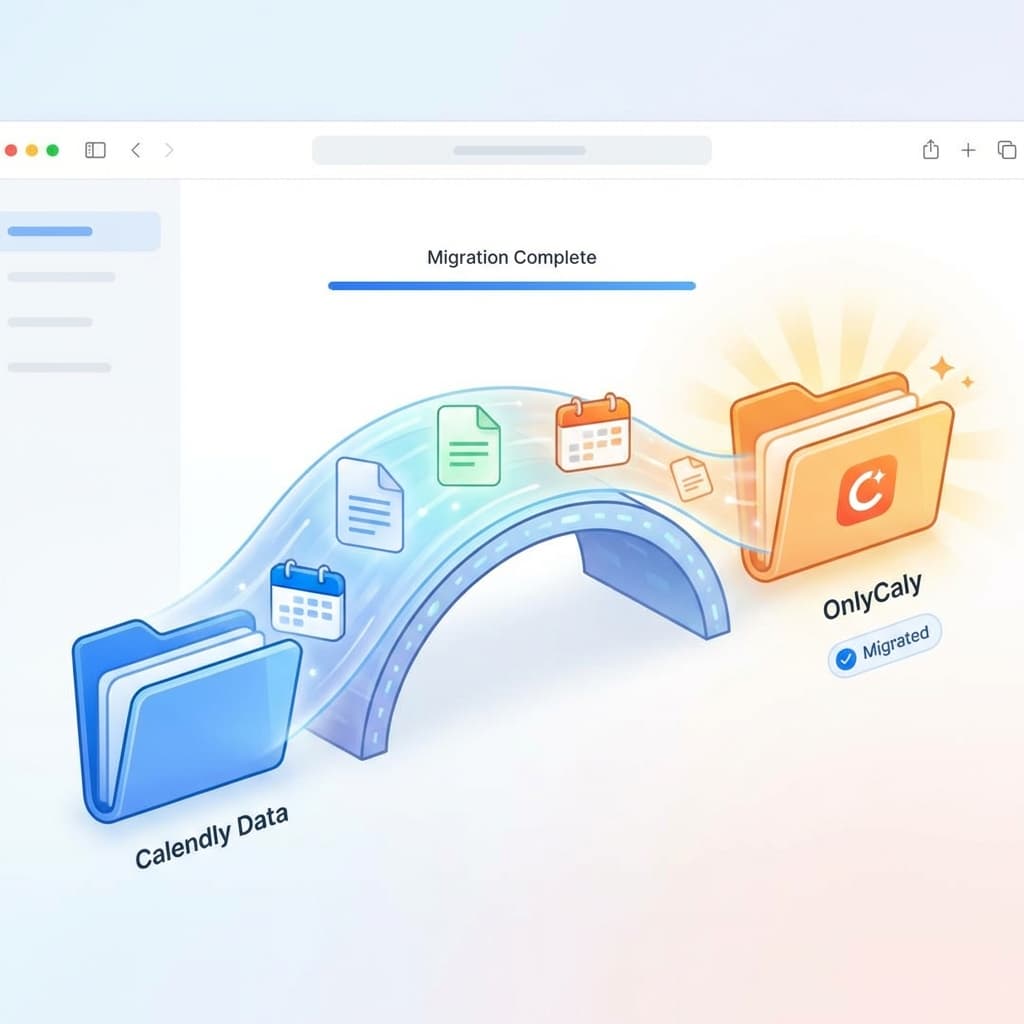
Fear not. This guide covers the safe, zero-downtime way to migrate from Calendly to OnlyCaly in under 10 minutes.
The Pre-Migration Checklist
Before you cancel your Calendly subscription:
- List your Active Event Types: Note down the durations (30m, 60m) and prices.
- Screenshot your Availability: It's easier to copy visually than to export/import complex rules.
- Check your Integrations: Are you syncing with Google Calendar? Outlook? Zoom?
Step 1: Recreate Your Event Types
In OnlyCaly, these are called Services.
- Go to Services > Add New.
- Recreate your "Intro Call" (15m) and "Therapy Session" (50m).
- Bonus: Add buffer times now if you didn't have them before.
Step 2: Connect Your Calendar
- In OnlyCaly, go to Integrations and connect the same Google/Outlook calendar you used in Calendly.
- Crucial: OnlyCaly will instantly see your existing "Busy" slots. This means you won't get double-booked during the transition.
Step 3: The "Soft Switch"
For a few days, keep both accounts active.
- Update your Website: Change the "Book Now" buttons to point to your new OnlyCaly link.
- Update your Email Signature: Swap the link.
- Old Links: If you sent a Calendly link to a client yesterday, let them use it. It will sync to your Google Calendar, which OnlyCaly reads. The two systems work in harmony.
Step 4: The Redirect (Advanced)
If you have a customized URL like calendly.com/yourname, you can't redirect that.
- Best Practice: In the future, use a custom domain or a redirect on your own site (e.g.,
yourpractice.com/book) that forwards to your scheduling tool. That way, you never have to change the link you share, only where it points.
Common Migration Mistakes
- Deleting Calendly Too Soon: Keep it for one week as a safety net.
- Forgetting Integrations: Did you re-connect Zoom and Stripe? Check those.
- Broken Bio Links: Check your Linktree, Instagram, and LinkedIn.
Step 5: Cancel Calendly
Once you see your first booking come through OnlyCaly, and you've confirmed your old links aren't being used actively, you can downgrade your Calendly account to free or cancel it.
Welcome to Better Toolkit You've moved from a generic business tool to a dedicated practice management scheduler. Enjoy the integrated intake forms, deposits, and cleaner interface of OnlyCaly.