How to Sync Apple Calendar (iCloud) with Your Scheduling Tool
"I put the dentist appointment in my iPhone, but my scheduling software didn't see it, and a client booked over it."
If this has happened to you, you know the pain of purely one-way syncs. Most professional tools (Calendly, etc.) are built for Google/Outlook. Apple Calendar users often feel left behind.
The Problem: "Check" vs "Add"
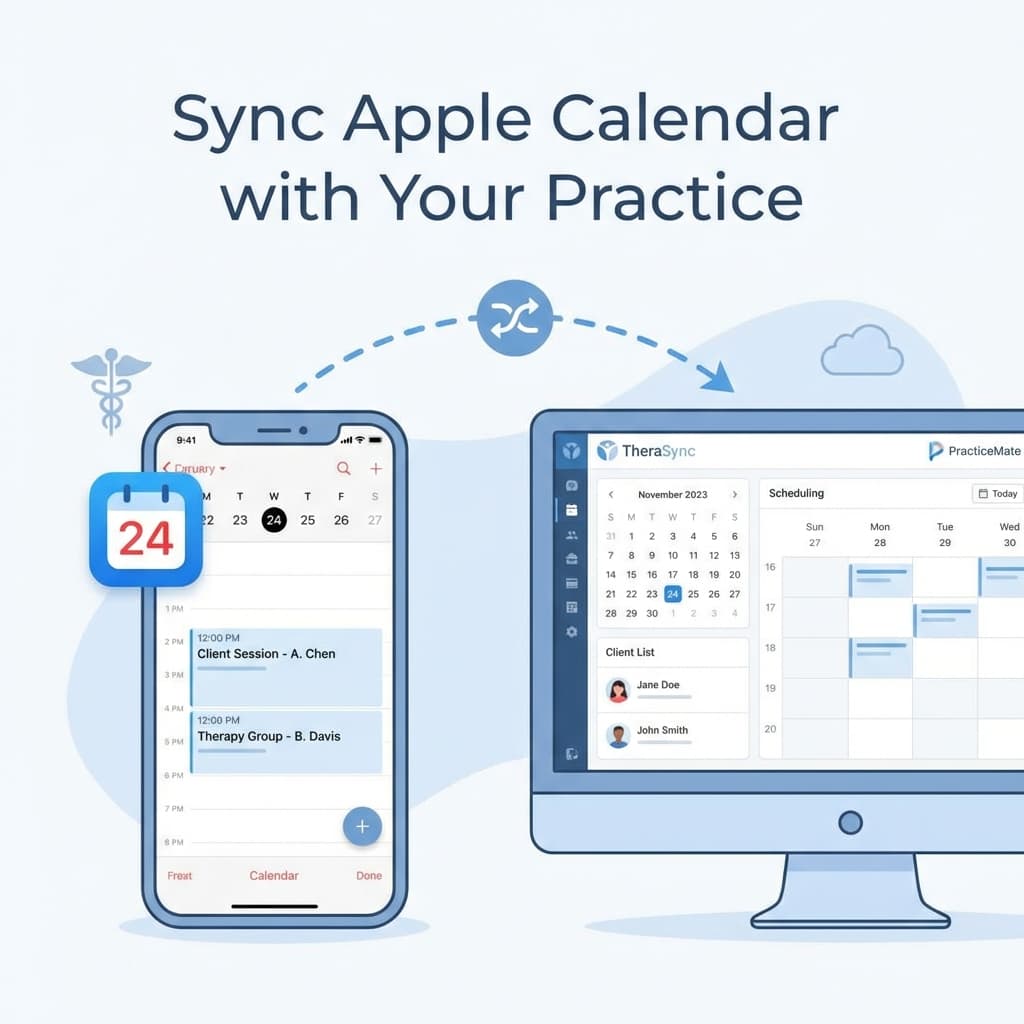
To avoid double bookings, you need Two-Way Sync:
- Check: The software looks at your iCloud to see "Busy" times (Dentist, Kid's Soccer).
- Add: When a client books, the software writes the "Therapy Session" onto your iCloud.
Most tools only do #2. Or they require you to make your iCloud "Public" (Privacy nightmare).
How to Set Up True 2-Way Sync
Since Apple's API is notoriously restrictive (App-Specific Passwords, 2FA), most scheduling tools utilize a bridge.
Method A: The "Direct" Route (OnlyCaly)
OnlyCaly has a native integration that connects to iCloud via secure OAuth.
- Go to Integrations -> Calendar.
- Select Apple / iCloud.
- Sign in with your Apple ID.
- Select which sub-calendars to check (e.g., "Work", "Home") and which to ignore ("Holidays").
Method B: The "Google Bridge" (The Hack)
If your scheduling software doesn't support Apple:
- Create a Google Calendar account (even if you don't use it).
- On your iPhone: Settings -> Calendar -> Accounts -> Add Account -> Google.
- The trick: Start adding your appointments to the Google calendar via your iPhone app.
- Connect the Google calendar to your scheduler. Cons: You have to remember to select the right calendar color every time you add a dentist appointment.
Privacy Best Practices
When syncing iCloud:
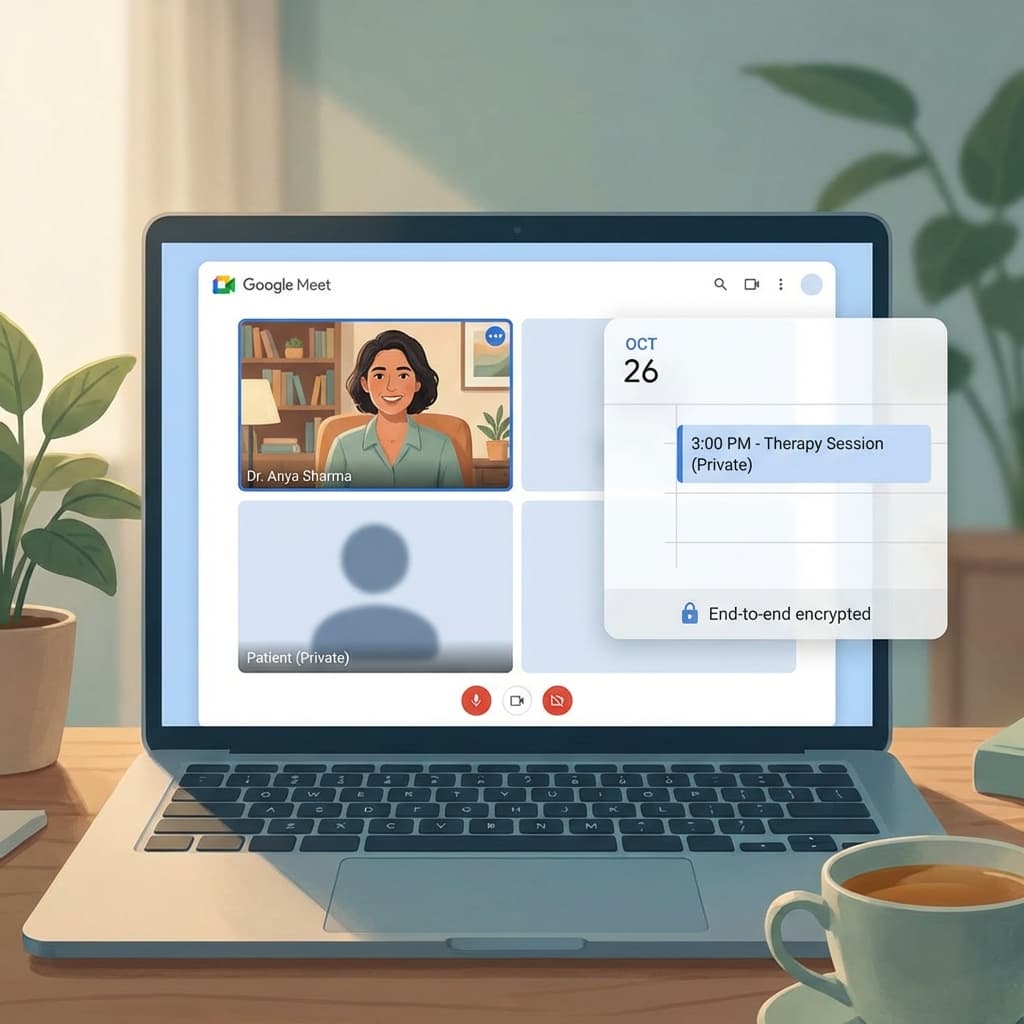
- Neutral Titles: Ensure your scheduler writes "Appointment" or "Busy" to your calendar, not "Session with John Doe for Depression".
- Shared Family Calendars: be CAREFUL. If you sync your "Family" calendar to check for conflicts, ensure your software doesn't add client appointments to the Family calendar where your spouse/kids can see them. Always set the "Add to" target as your private "Work" calendar.
Troubleshooting
"It says I'm free, but I'm busy!"
- Check "All Day" events. Some software ignores "All Day" events unless you mark them as "Busy" explicitly in Apple Calendar (default is "Free").
"It keeps disconnecting!"
- Apple expires security tokens often. You may need to reconnect every 3-6 months. This is an Apple security feature, not a bug.
Love Your iPhone? OnlyCaly has one of the robust Apple Calendar integrations on the market. Keep using the pink/purple calendar app you love; we'll handle the booking logic in the background.