Google Calendar Booking Link for Therapists: A Setup Guide
TL;DR
- The Problem: Email back-and-forth wastes time and risks double bookings.
- Option 1 (Google): Free "Appointment Schedules" (basic, limited branding).
- Option 2 (OnlyCaly): Two-way sync with Google, HIPAA protection, and payments.
- Pro Tip: Put personal events in your work calendar as "Busy" to auto-block availability.
Every therapist lives by their calendar. But going back and forth with clients via email ("Are you free Tuesday?" "No, how about Wednesday?") is a relic of the past.
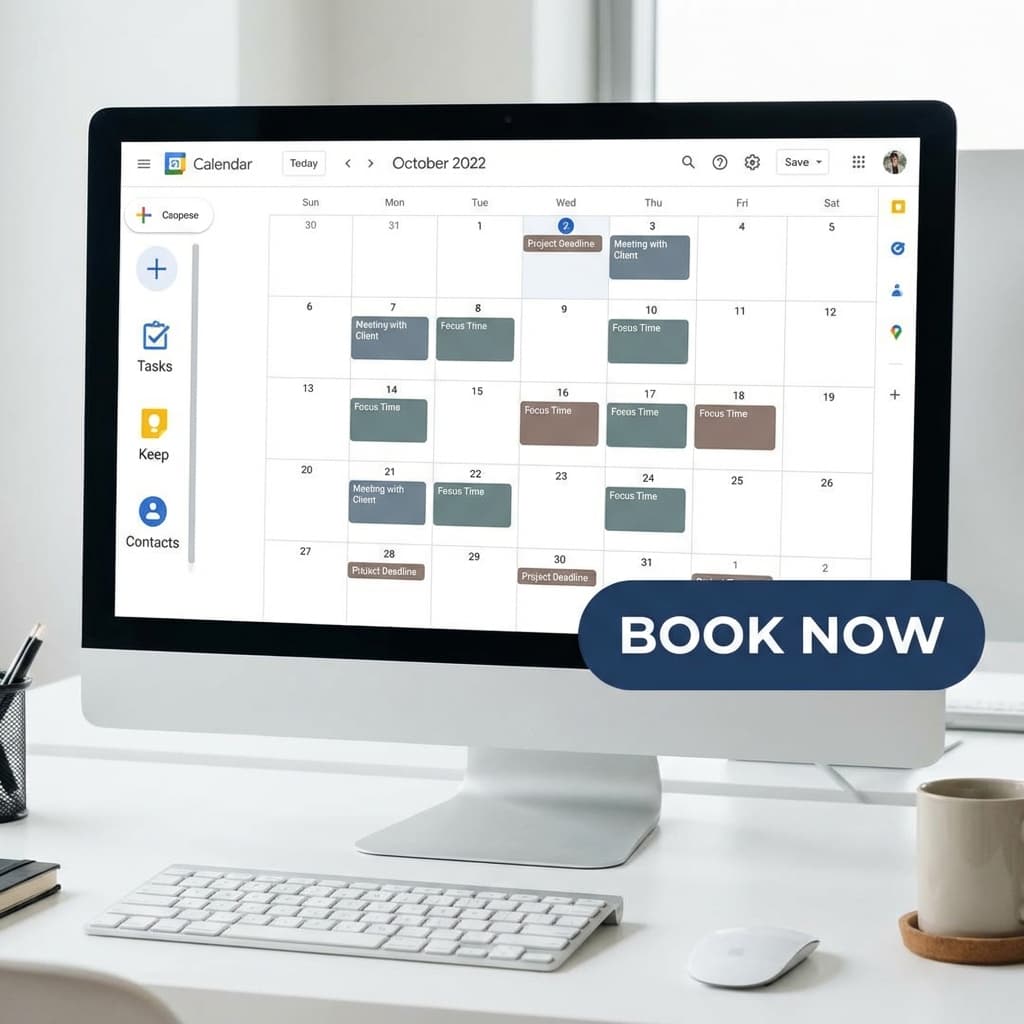
You need a Booking Link. A simple URL you send to clients that shows your real-time availability based on your Google Calendar.
There are two ways to do this: using Google's native "Appointment Schedules" or using a dedicated scheduler like OnlyCaly. Here is how to choose and set them up.
Option 1: Google Appointment Schedules (Native)
Google recently upgraded their appointment slots.
Pros:
- Built right into Google Calendar.
- Free for basic use (Personal Google accounts have limits; Workspace has more features).
Cons:
- Limited Customization: Hard to brand the page.
- No Payments: Can't easily charge a cancellation fee or deposit upfront without third-party tools.
- Rigid Reminders: Less flexibility with SMS reminders compared to dedicated tools.
How to set up:
- Open Google Calendar.
- Click "Create" > "Appointment schedule".
- Set your duration and availability.
- Share the generated page link.
Option 2: Using OnlyCaly (Recommended for Therapists)
For a private practice, you usually need more than just a time slot. You need intake questions, payment protection, and a professional look.
How it works with Google Calendar:
- Two-Way Sync: OnlyCaly reads your Google Calendar to see when you are busy (dentist appointment, lunch, personal events) and blocks those times automatically.
- Add to Calendar: When a client books, OnlyCaly writes the appointment directly to your Google Calendar with all client details.
Step-by-Step Setup:
- Sign up for OnlyCaly (Free account available).
- Go to Calendar Connections.
- Select Google Calendar and authorize access.
- "Check for Conflicts": Select which calendars (e.g., "Work", "Personal", "Family") should block your availability. This prevents the dreaded "Double Booking".
- "Add to Calendar": Select which calendar the new therapy sessions should be added to.
Common Mistakes with Google Calendar Sync
- Forgetting Personal Events: Not blocking out "Lunch" or "School Pickup". (See our Time Zone Guide for travel tips).
- Using "Free" instead of "Busy": OnlyCaly only blocks time marked as "Busy".
- Multiple Accounts: forgetting to sync your personal Gmail account along with your work account.
Mastering "Double Booking" Prevention
The biggest fear for therapists is showing up for a session when they have a personal conflict.
The Golden Rule of Sync:
- Put EVERYTHING in Google Calendar.
- If you have a dentist appointment, create an event "Dentist" in Google Calendar.
- Mark it as "Busy" (default).
- Your Booking Link will immediately stop showing that hour as available to clients.
You don't need to manually update your "availability hours" in the software. Just live your life in your calendar, and the booking link adjusts.
Calendar Privacy for Therapists
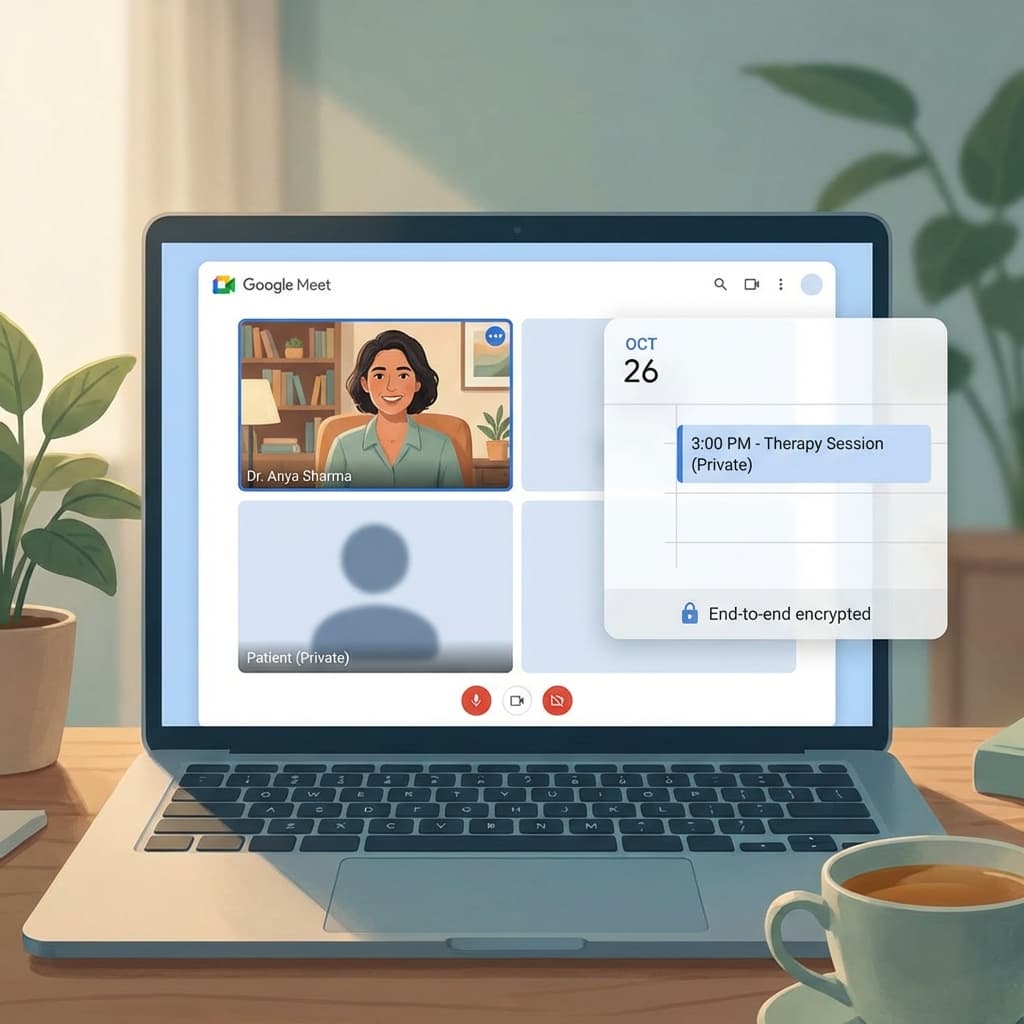
Clients should never see what is on your calendar.
- With a Booking Link (OnlyCaly), clients only see "Available" or "Unavailable". They do not see "Dentist" or "Lunch with Mom".
- This maintains total privacy while ensuring accurate scheduling.
Get a Professional Booking Link Stop the email tag. Create your OnlyCaly booking link in 2 minutes, sync with Google Calendar, and let clients book the times you are truly free.