Zoom Integration for Therapy Scheduling: The Complete Guide (2026)
TL;DR
- Automate it: Stop manually creating Zoom links. Auto-generate unique URLs per client.
- Security: Use passwords and Waiting Rooms (mandatory for HIPAA compliance).
- Tooling: Connect Zoom to OnlyCaly to handle link generation + email reminders automatically.
- Backup: Always have a backup plan (e.g., Google Meet) if Zoom goes down.
If you are manually creating Zoom links for every client and emailing them out 10 minutes before the session, you are wasting valuable mental energy.
In a modern telehealth practice, the "scheduling flow" should be invisible:
- Client books a slot.
- Unique, secure Zoom link is generated instantly.
- Link is sent to Client & added to your Calendar.
- Reminders are sent automatically with the link.
This guide explains how to set up this workflow securely, ensuring HIPAA compliance and ease of use.
Why Use Automated Zoom Integration?
- Security: Using a "Personal Meeting ID" (PMI) for all clients is risky. If one client joins early, they might interrupt another session. Automated integrations create a unique URL for every single meeting.
- No Admin Work: Zero copy-pasting. Zero "Sorry, wrong link" emails.
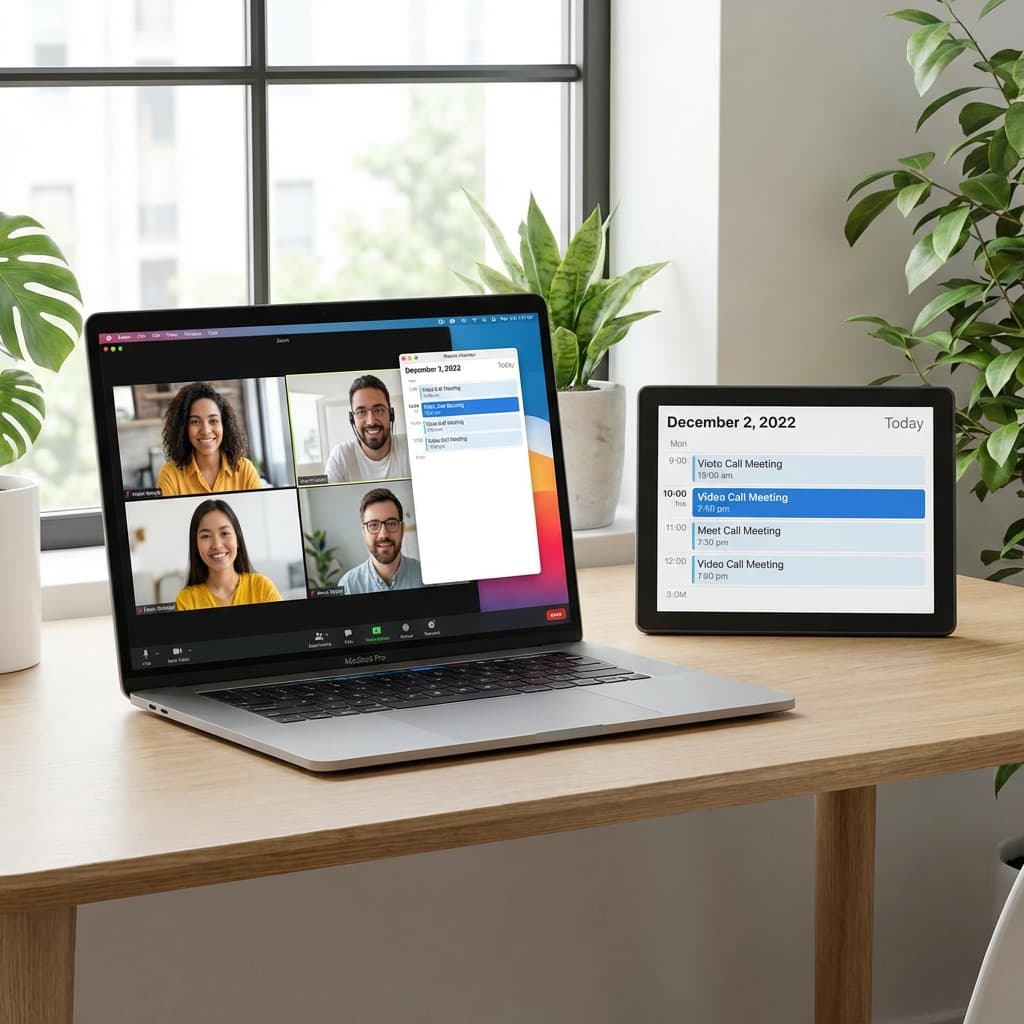
- Professionalism: Clients receive a polished calendar invite with the location already set to "Zoom Meeting".
How to Set It Up (Step-by-Step)
The easiest way is to connect Zoom to your scheduling platform. Here is how it works in OnlyCaly:
- Login to OnlyCaly and go to Integration Settings.
- Click "Connect Zoom". You will be redirected to sign in to your Zoom account.
- Authorize the app.
- Go to your Service (e.g., "Standard 50min Session") and edit the Location setting.
- Select "Zoom Video" from the dropdown.
That's it. Now, whenever someone books that service, OnlyCaly talks to Zoom, grabs a fresh link, and puts it in the confirmation email.
Best Practices for HIPAA-Compliant Zoom Settings
Even with automation, you need to ensure your Zoom account settings are secure for therapy:
1. Enable Waiting Rooms
Always keep the Waiting Room enabled. This prevents a client from entering the session before you are ready, ensuring the previous client has fully disconnected.
2. Require Passcodes (Embedded)
Zoom allows you to embed the passcode in the invite link. This is great for UX (client just clicks one link) while preventing random "Zoom bombing" bots from scanning for open meetings.
3. Disable "Join Before Host"
Never let the client enter the room without you.
4. BAA (Business Associate Agreement)
If you are in the US, you need a HIPAA-compliant Zoom plan (usually the Healthcare or specific paid tiers) that creates a BAA with you. The integration itself (like OnlyCaly) just passes the link, but the video call happens on Zoom's servers, so your agreement covers that data.
Common Automation Mistakes
- Using PMI (Personal Meeting ID): Never use your static PMI for clients. If Client A arrives early, they bomb Client B's session.
- Forgetting Time Zones: Ensure your auto-generated emails clearly state the time zone. (Read more on Time Zone Scheduling).
- No "Tech Check": Not sending a "Test your Audio" link in the reminder email.
Troubleshooting Common Issues
"The link isn't appearing in the calendar." Check if you selected "Zoom" as the location for that specific service. Sometimes therapists connect the integration but forget to apply it to the "Intake Session" service type.
"Clients can't find the link."
Ensure your confirmation email and SMS reminders include the {Location} variable. In OnlyCaly, this is default, but if you customized your templates, double-check you didn't delete the link variable.
Alternatives to Zoom
While Zoom is the giant, other options integrate well for therapy:
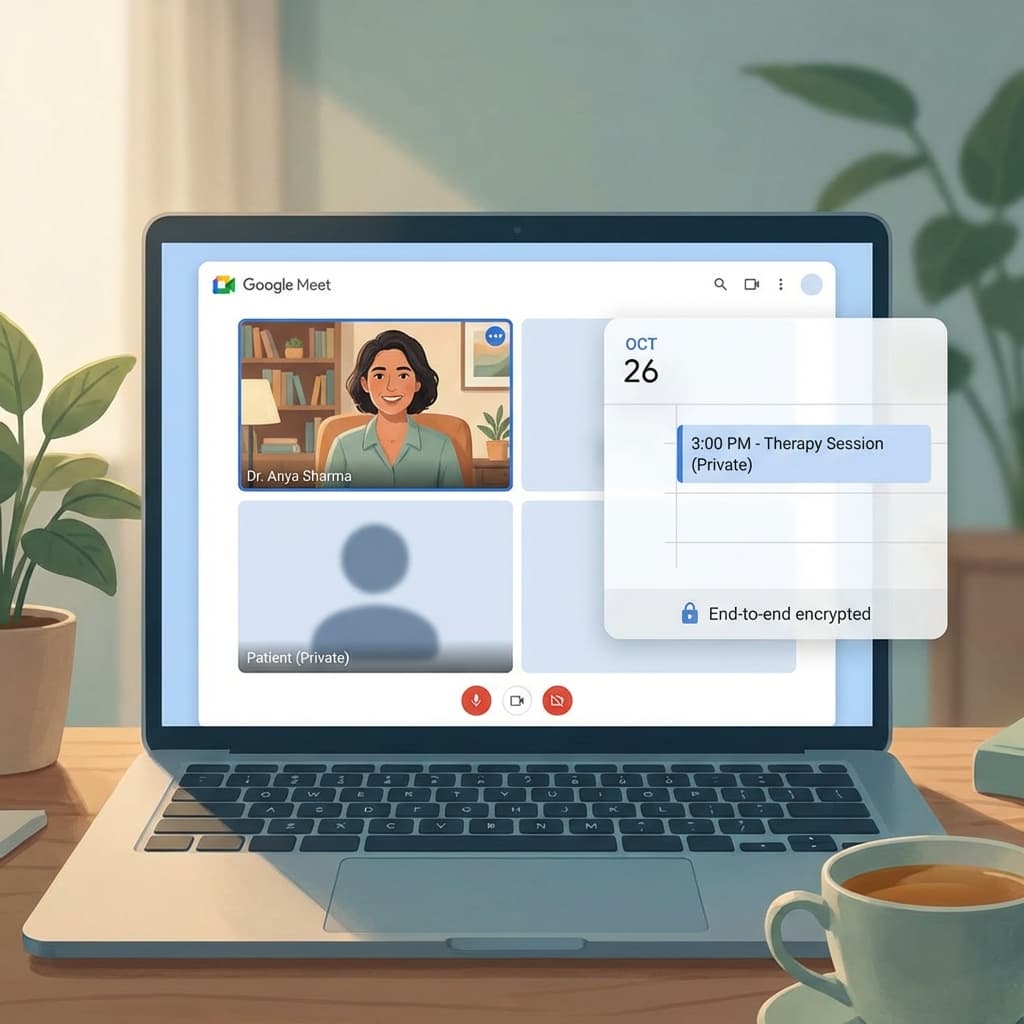
- Google Meet: Free, HIPAA-compliant (with Workspace BAA), and no app download required for clients.
- SimplePractice / Doxy.me: often require their own proprietary scheduling, which can be expensive.
For most private practices starting out or scaling up, the OnlyCaly + Zoom (or Google Meet) text stack is the most cost-effective and professional solution.
Ready to automate your video links? Connect Zoom to OnlyCaly today and never manually create a meeting link again.